Amazon Best Selling Prime

Wednesday, June 6, 2018

D-Day Supplimental Education Enrichment Activity

"You are about to embark on the great crusade toward which we have striven these many months. The eyes of the world are upon you… I have full confidence in your courage, devotion to duty and skill in battle." – Gen. Dwight D. Eisenhower

Today I would like everyone to take a minute to think about the courage, sacrifice, and importance of the D-Day Invasion.  This is the 74th Anniversary of this historic event that changed the continent of Europe profoundly!  Please watch the video below in class, read some of the articles related to the event, and if you have time, try to challenge your friend to the Ultimate History Quiz on the History Channel website.  I hope you can understand what kids, most just a few years older than you at the time, helped to do when they were thrust into battle so many years ago!  Thank you in advance for your time and effort with this learning experience.  Please share this with your families!

Please complete the CCS-515 D-Day Worksheet for additional credit in my class this marking period.

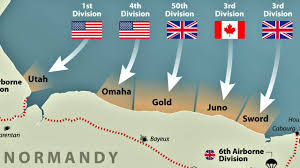
"156,000 American, British and Canadian forces landed on five beaches along a 50-mile stretch of France’s Normandy coast, where they met stiff resistance from well-entrenched Germans in concrete bunkers placed at strategic points along the coast and beaches with mines and other anti-tank obstacles as well as wooden stakes, barbed wire, and metal tripods to impede landing craft and the movement of troops once ashore.

Within three months, however, the northern part of France would be freed by more than 2 million Allied troops and the invasion force would be preparing to enter Germany, where they would meet up with Soviet forces moving in from the east."


- By Andrew Atkins, The Columbus Dispatch (Posted Today Online)
http://www.dispatch.com/news/20180606/remembering-d-day-74-years-later

The Ultimate History Quiz features thousands of questions about American and global history trivia. Play now to challenge your friends, and see how you stack up to the competition.  Use the link below to play on your own, online, or with up to 10 friends using the links found there!


WWII Veterans you could talk to about their service: Yielding to the inalterable process of aging, the men and women who fought and won the great conflict are now in their late 80s and 90s. They are dying quickly—according to US Department of Veterans Affairs statistics, 558,000 of the 16 million Americans who served in World War II are alive in 2017. - https://www.nationalww2museum.org/war/wwii-veteran-statistics

ADDITIONAL RESOURCES:


Image result for d-dayImage result for d-day

Thursday, May 17, 2018

Teach Your Kids About Investing!

Today I started what has become a springtime class tradition.  My annual Stock Market Game using Investopedia!  Every student creates an account on Investopedia.com, and joins my Stock Market Game!  They start with $10,000 and try to beat me by buying and selling stocks.  It is a huge hit.  They investigate and research like they are spending their real money!

Over the course of our class, students are introduced to a Personal Monthly Budget project (more details in a later post).  Any money they earn, as a result of investing in the game, can then be included in the PMB project!  See below for an outline of the resources I use for this part of the project, and more information!  There is even a picture of the "TechNOcurrency" I created for prizes!*  Next year I might even start earlier and create a TechNOcurrency Bank to simulate interest, dividend payments, and other investing ideas.

* I added cash to my own cafeteria account at school.  When students present these coupons to purchase items, they put them in the money drawer as cash, and then total them/deduct them from my account at the end of the day.  I usually give the Top 3 Investors $1 each, per day, and I also choose a Lottery Winner each day from the list for a $1 prize.


Objective: Students should learn the basics about savings accounts and investing in the Stock Market. Students will use independent learning time to navigate through a series of videos to help them better understand basic Personal Budgets, Saving Money, Credit Card Tips, and how to Invest in Company Stocks. Students will complete a Journal Entry and sign up for our class Stock Market Challenge.

Complete the Following Steps:
1. Read the Article below and complete a Journal Entry (On the CCS-515 PA CEW PMB Worksheet)
2. Watch Videos Below and Complete Class Worksheet & Vocabulary List (on the form listed above.)
3. Create an account on Investopedia.com and click link below to join 2018 Game

To begin your investing journey, please read the following article: Investing VS Gambling Article (Click Here) and write a brief (2-3 Sentences) journal entry about your feelings about the main point of the article.

Second, watch each video link below on your own. After each video, answer the questions on the worksheet for today. When you have completed the worksheet questions, please research and fill in the Vocabulary Section on the back of the sheet. Turn in the sheet for credit!

1. Personal Budget Tips:
https://www.youtube.com/watch?v=0_GZOr4l7P0

2. How To Save Money:
https://www.youtube.com/watch?v=UxC_KaCD8KQ

3. Savings Account Video:
https://www.youtube.com/watch?v=j0ttAaz32VU

4. Credit Card Tips:
https://www.youtube.com/watch?v=en6IfLFlrJM

5. Company Investing Tips
https://www.youtube.com/watch?v=6MPtq56CT1I

Third, Use the link below to sign up for our Stock Market Challenge. Please go to Investopedia.com and create an account using your CCS Gmail address. Once Created, click the link below and you should automatically be forwarded to the game. Once you have created and account, follow the directions to BUY and SELL stocks.  You have $10,000 to spend.  If you make any money in the market this week, you can add it to your Final Budgets!

Use the following sites to help you pick stocks for the game:
MarketWatch (Wall Street Journal) Website (CLICK HERE) 

MSN Money Top 50 Stocks (CLICK HERE)

Additional Resources: here is a link to the Stock Market Basics Presentation from Class (Click Here) 

We will be reviewing the following video together in class: Investing Basics VIDEO (CLICK HERE) and discussing how you can find stocks you might be interested in investing in for the project. 

Investopedia Stock Market Game Instructions

Step 1:  Go to Investopedia.com
Step 2:  Create a NEW Account using your (SCHOOL) Gmail.
Step 3:  Your USERNAME should be your First Initial and your Last Name followed by (Your School)
Step 4:  Choose a Password you can remember, YOU CANNOT RECOVER IT if you forget!
Step 5:  Once Logged In, Click on SIMULATOR in the menu across the top of the screen
Step 6:  Under JOIN A PUBLIC GAME, click View More Games (Blue Link)
Step 7:  Search by GAME NAME for the game listed as (GAME NAME HERE)
Step 8:  Click JOIN (Blue Link)

Once you have joined the game, view your Portfolio and do some research on stocks you are interested in.  Make sure you click Trade Stock (link) and enter the Stock Symbol for the company you are interested in.  Click BUY or SELL only.  Review the stock information to the left of the screen to see what the stock's current price is.  Calculate how many shares you want to Buy/Sell at that rate.  Enter the number in the appropriate box.  Make sure you are buying at the MARKET RATE and it is "Good Till Cancelled".  Click PREVIEW ORDER.  Once you have previewed the next page, click SUBMIT to start the action.  You can check your progress anytime, as the market is live.  Each morning, I will post the rankings on the board!

NEED HELP FINDING STOCKS TO PICK:  barchart.com

GOOD LUCK!!

- Mr. S

Tuesday, May 15, 2018

Show A Movie....Really!! COSMOS for Middle/High School!

Are you always looking for something to do for the end of the school year?  Need to "Show A Movie" as a Substitute, or just give them something to think about?  Here is a great resource kit for COSMOS (Netflix and other Apps):

Cosmos Google Drive Folder

ThoughtCo. Lesson Website Link:
https://www.thoughtco.com/cosmos-a-spacetime-odyssey-teaching-tools-1224457

Thursday, March 8, 2018

Digital Animation Made Easy!

Today you will begin to create a Digital Animation Video Clip. There are many resources for creating digital movies, as listed below. Before class is over, read all directions in this post and learn about different types of ANIMATION.  Then OPEN Google Slides/PowerPoint on Computer and begin to create a "stick-figure" background scene for your longer digital animation using the draw tools found in each of those programs/applications.

Resources & Examples
First Animations:


Pixar Examples

Mr. Scribner's Examples

Tomorrow you will be using your scene to create a 75-slide (minimum) animated scene. Eventually you will EXPORT your slides as Images (JPEG) and using MS Movie Maker to create a Digital Animation with Music, Titles, and Credits.


When you make animation you have to create each picture on the film.

There are normally 25-40 pictures per second. When animating we recreate the laws of nature as we are able to relate to the action. However, with animation we can do a lot more than just follow the laws of nature. We can do anything, we can tell the story just as it is in our dreams.

Animation is a tool of communication.
When we animate we must not forget to put idea and intention in the movements. A movement without idea and intention is boring. Another great communication tool is the contrast; fast/slow, backwards/forwards and so on. If we remember this it makes us animate better. So if you want to animate something going up, you think go down first. If you you want to stretch your character, you squash him first. The best thing is to do the movement yourself or make a friend do it so you can study the movement. This also helps you plan your animation. The better you know what to do, the better you can animate it.

See The Animation Section of ANIMWORK (Click Here) for more information about this project.

I Can't Wait, I Want To Make Something Right Now!  Try the ZIMMERTWINS website for a longer animations made easy. You could have them talk to each other, about different things, or create news-style reporting cartoons.

Learn More About It: http://www.awn.com/blog/teach-yourself-animation-art-timing How do I learn animation? For those with a school nearby and some time on their hands, it’s no problem. But for those with limited options, here are some resources to help teach yourself animation. And a step-by-step guide: http://www.awn.com/blog/teach-yourself-animation-2d-tools-part-1

You Could Also Check Out: A European partnership created this guide to help teachers learn more about using animation to teach. With some basics in place such as how to create a good story and what tools to use, ANIMWORK puts everything into perspective for any teacher who wants to create his or her own animation.

DIGITAL SCENE & BACKGROUND PICTURE CREATION PROJECT DIRECTIONS

IF YOU FEEL LIKE IT: CREATE A ZimmerTwins CARTOON AND SEND IT FOR CREDIT TODAY!

A. CREATE A BACKGROUND SCENE TO START WITH:
Step 1: Log into Google or Open Microsoft PowerPoint on your Computer
Step 2: Create NEW Slides Presentation or NEW Presentation in PowerPoint
Step 3: Use the Drawing Tools to make a stick figure scene. Make sure to place specific layers in order and use a variety of colors and styles to make it vibrant.
Step 4: Export you Presentation/Slide as an Image and Upload to Google Drive

Step 5: SHARE your Image with Mr. S (hscribner@ccs.us) for credit.

B. ANIMATE IT:
  • Your project must include at least 50 slides.
  • It must have at least 3 layers of depth: Foreground, Middle Ground, Background.
  • It must have at least 3 things moving during the course of the animation. 
  • Your motion must incorporate LAYERS of movement where items move in-front or behind each other.
  • You must Upload and SHARE your project with instructor using Google Drive for credit.
C. MAKE IT INTO A MOVIE:
Step 1. Open your project in Google Slides/MS Powerpoint. (If you created it in Google Slides you must Download it in MS Powerpoint to Export the slides together.

Step 2. EXPORT your slides as JPEG Image Files to the Desktop.

Step 3. IMPORT your JPEG Image Files into MS MOVIE MAKER.

Step 4. Using MS MOVIE MAKER, you must create a Digital Animation "Short-Film" by making each image "flash" for around 1/2-second each. This will give the impression that the images are animated. You should add Titles, Credits, and a short burst of music to finish the film.

YOU MUST IMPORT AT LEAST ONE (1) SOUND EFFECT/MUSIC AND ADD IT TO THE ANIMATION PRIOR TO SAVING IT!  (You can use freesound.org and audacity to record sound effects or music for use in this project.)

Step 5. SAVE MOVIE as an MP4 file, Upload it to Google Drive, and SHARE it with Mr. S for credit.

Have Fun with this project. If you would like to know more, here is the original link to 50 more digital animation websites at TEACHTHOUGHT.COM (Click Here)! Good Luck!


ACADEMIC/LEARNING OBJECTIVE
Scholars will learn the basics of Digital Animation. Scholars will be able to create "mini" animations using an online application. Scholars will also start creating the basic drawing that will be used for a future "line-art" digital animation project. Scholars will be able to complete a Constructed Response about the "History of Animation" and discuss what they like, or do not like about the project.

STUDENTS WILL ENTER THE CLASS QUIETLY AND BEGIN WORKING! 

Scholars will sign into Google Drive as they enter the class. Scholars will read all directions on this post thoroughly.  Scholars will review the examples linked above to determine the type of movie they are interested in making.  They will need to create a short (3-9 second) video clip, with at least one sound effect, for credit.  When complete, they will UPLOAD both the RAW Project, and their FINAL Project to Google Drive and SHARE it with Mr. S for review.   The basis for their projects will be created using a single slide in Google Slides that they should create first.

THANK YOU FOR YOUR ATTENTION AND POSITIVE ATTITUDE TODAY!

Standards Covered In This Class 
PA 3.7.7 & 11 Section C / ISTE 2011
CSTA Tied With Common Core ELA/Math rev. 2011

Tuesday, March 6, 2018

History of Digital Animation Lesson

Today you will learn about the History of Digital Animation.  Please enter class and sign into your Google Accounts (If you are in the Technology Lab).  Begin the class by viewing the following website about PIXAR ANIMATION (Click Here).  Please watch the video on the bottom of the main page ("25 Years of Pixar Animation").  


If you do not have access to technology, you may sit quietly and review the following video:  https://www.youtube.com/watch?v=Sfzy05M-nzY  Make sure you take some notes while you watch.


When you are done viewing the video you will discuss, as a class, some of the videos and movies you are familiar with, and how they were made.  Please be specific about the techniques and animation used in the video you just watched.  How has animation changed over the course of history, and where could it be going?  What are some of the technologies used that are new, and how are we using these technologies in class to create our own video clips.  Please review the PIXAR DIGITAL ANIMATION PRESENTATION here.  Show the following PIXAR Animation SHORT FIlm: "That Was So Cute Bird" (Click Here)


MAKE SURE YOU USE THE FOLLOWING WEBSITE TO COMPLETE YOUR WORKSHEETS:

https://en.wikipedia.org/wiki/History_of_animation

When you have completed the discussion, you should open the following Google Document "History of Digital Animation Worksheet"  Make sure you click FILE and MAKE A COPY to put one in your Google Drive.  Make sure you SHARE your COPY with me as soon as you create it, to turn it in.  Then you may follow the directions and complete the research portion of the project.  If you do not have access to a computer or Ipad, please complete the printed copy on your own for homework.  You may turn it in tomorrow.

Finally,  Please spend some time working on your Digital Animation Project.  Make sure you re-read ALL DIRECTIONS, and make sure you are completing the project correctly.  SHARE the project you have created in your Google Drive for credit.

VOCABULARY
Animation A filmmaking technique where the illusion of motion is created frame-by-frame. The word comes from the Latin word, "anima," meaning "life" or "soul". 

Animator The person who draws the moving character in an animated film. 

Background A flat piece of artwork that is the setting for a moving character in an animated film. A background could be a picture of a forest, a sky, a room, or a castle. 

Cel A clear piece of plastic on which the animator's finished drawings are painted. The cel is clear so that when placed over the background, the animated characters appear to be in a setting. 

Frame An individual still picture on a strip of film. 24 frames equal one second of a motion picture. 

Frame-by-frame The filmmaking technique in animation where each frame is exposed one at a time and the object being photographed is slightly altered for each picture. 

Ink and Paint The step in cel animation where the animator's drawings are placed on cels to be photographed. A drawing is outlined on the front of the cel with black ink, while the back of the cel is painted. 

Kinestasis (Kin-e-sta'-sis) An animation technique using a series of still photographs or artwork to create the illusion of motion. 

Model Sheet A reference sheet for animators that shows a number of different poses of an animated character. The model sheet also shows how characters relate in size to other characters. 

Pixilation (Pik si la' shun) A stop-motion technique in which life-size props or live actors are photographed frame-by-frame. When viewed, they appear to be moving at a fast speed. 

Script The written story of a film that supplies dialogue, camera moves, background, staging and action. 

Squash and Stretch A drawing technique used by animators and originally developed at the Disney Studio to show exaggerated movements in characters. For example, if you wanted a character to jump, you would draw him close to the ground as if 'squashed' and then you would 'stretch' him out as he went into the air. 

Storyboard A "storyboard" is a visual representation of a story. Pictures can be sketched on pieces of paper and pinned to a large board, or they can be drawn on a large piece of paper, comic-book style, to represent scenes in a film. A story sketch should show character, attitude, feelings, entertainment, expressions, type of action, as well as telling the story of what's happening. When you look at a board, it should reflect the feeling of the sequence so the viewer starts to pick up some excitement and stimulation. A story sketch artist at an animation studio us usually an artist who has special interest in illustration, design, appearance, and character. 

Zoetrope (zo'-e-trop) An early animation device that spins drawings in a revolving drum to create the illusion of motion. Inbetweens Drawings that are in between the drawings that are at the beginning and end poses.

Extremes Drawings that are at the beginning and end of a particular pose.

RESOURCES


ACADEMIC/LEARNING OBJECTIVE
Scholars Students will learn about the History of Digital Animation through online research and classroom discussion. Scholars will be able to create "mini" animations using an online application.  Scholars will also continue creating the basic drawing that will be used for a future "line-art" digital animation project.  Scholars will send and email to Mr. S (hscribner@ccs.us) about the "History of Animation" and discuss what they like, or do not like about the project.  You must write at least 4-5 sentences in paragraph form.  State your position about the project, and provide facts and opinions to defend your position. RESTATE the Question, ANSWER the Question, CITE your Evidence, EXAMPLES of your Evidence in your conclusion.  Make sure you wrap up your thoughts with a SUMMARY sentence.

  STUDENTS WILL ENTER THE CLASS QUIETLY AND BEGIN WORKING! 

Scholars will sign into Google Drive as they enter the class.  Scholars will read all directions on this post thoroughly and review the YouTube video about the "History of Digital Animation".  Students will discuss various animation techniques presented in the video.  Students will then complete a History of Digital Animation Worksheet using online resources.  Students may use the balance of time left to work on their own digital animation projects that are previously listed on the Class Assignment Site.

THANK YOU FOR YOUR ATTENTION AND POSITIVE ATTITUDE TODAY!

Standards Covered In This Class 
PA 3.7.7 & 11 Section C / ISTE 2011
CSTA Tied With Common Core ELA/Math rev. 2011
Wednesday, February 14, 2018

Gamestar Mechanic 17-18 (Introduction To Video Game Creation)

VIDEO GAME DESIGN INVESTIGATION PROJECT 


STEM CHALLENGE: Make-Learning Games Link


Explanation Video (VIMEO) Link: https://vimeo.com/59319035


Today you will spend some time working on GAMESTAR MECHANIC! This is an introductory program to teach the basics of creating video games. Please use the link below to join our class:


Once you have joined, spend time in class today working through the QUEST and initial levels. You can work on this from any place you have an internet connection. Once you see how basic game design works, by completing the story-line and levels, you will then be able to put this together with the basic coding we work on later this year. Take your time and work through this at your own pace.

Enjoy today's fun day, and be ready to work on creating web sites next week. Relax and Enjoy this reward for your hard work over the last few weeks!

- Mr. S 

STEP BY STEP INSTRUCTIONS
  1. CLICK THE LINK ABOVE
  2. Look For "I Do Not Have An Account"
  3. Click "I AM AUTHORIZED TO JOIN THIS CLASS"
  4. TYPE In A USERNAME (Your Choice But Appropriate)
  5. TYPE In A PASSWORD and CONFIRM IT (Same Password Twice)
  6. ENTER Birthday
  7. ENTER First Name and Last Name
  8. CHECK BOX "I Have Read And Agree To Terms"
  9. CLICK REGISTER
  10. CLICK ON ONE PICTURE FOR EACH GROUP, REMEMBER YOUR CHOICES
  11. CLICK THE SAME PICTURES AGAIN TO VERIFY YOUR CHOICES (You Will Use These If You Forget Your Password)
  12. CLICK "QUEST" And Complete Each Level To Get More Items To Use In A Game You Will Design
  13. GOOD LUCK!  HAVE FUN!
ACADEMIC/LEARNING OBJECTIVE
Scholars use a link provided on the class website to begin learning about how video games are created.  Each scholar will work on their own to work through the storyline and levels of the game-making process.  Scholars will be required to use Peer Mentoring to help each other through difficult levels prior to instructor intervention.

STUDENTS WILL ENTER THE CLASS QUIETLY AND BEGIN WORKING!
STUDENTS MUST START BY READING ALL DIRECTIONS ON CLASS WEBSITE!
Scholars will create individual accounts on Gamestar Mechanic using the link provided on the class website.  Scholars will work independently on each level of the storyline to begin creating a video game.

THANK YOU FOR YOUR ATTENTION AND POSITIVE ATTITUDE TODAY!

Standards Covered In This Class  
PA 3.7.7 & 11 Section C / ISTE 2011
CSTA Tied With Common Core ELA/Math rev. 2014

Monday, February 12, 2018

PETE&C Code.org Overview Presentation & Links

The Pennsylvania Educational Technology Expo and Conference (PETE&C) is a statewide event that provides quality programs focused on technology in the educational field.

Apparently I am the "Jason Kelce" of Ed Tech Fun in PA!
"Hungry Dogs Run Faster" (Love This Quote)
Yesterday I had the privilege of being invited to present at PETE&C.  My Sunday Session, from 1:00pm to 4:00pm allowed attendees to participate in a hands-on, interactive workshop to present an overview of the Code.org Curriculum.  We discussed how is was created, the main reasons it exists, and showed examples (especially unplugged activities) for each of the different levels in the Course Catalog found on the website.  Special emphasis was placed on the K5 Fundamentals and CS Discoveries programs.  Connections with the Hour of Code were also presented.  Links to the presentation slides, and to the conference itself are listed below.  For more information about Code.org, PETE&C, or any other Educational Technology topic, please contact me right away.  If I do not know the answers, I can help you find someone that does!

Friday, February 9, 2018

Eagles Parade Scribner Highlights Short Version

Check Out Our Video LIVE From The Parade at 22nd/Parkway in Sunny Philadelphia!


FLY EAGLES FLY!

BELIEVE!

"Hungry Dogs Run The Fastest!"


Thursday, February 8, 2018

SPENT: A NEXTGEN Personal Finance Simulation Project (Middle School) CCS

The Inquiry below is intended to help introduce students to the decisions people have to make everyday when they are living paycheck to paycheck. The Supplemental Resources are provided only to support the Inquiry, but the Inquiry is a comprehensive lesson on its own. 


In this Inquiry, students will use a simulator to roleplay an adult trying to make ends meet when they don’t have a surplus of finances. In the process, students will learn about how their decisions impact the people around them and their ability to pay for the necessities each month as well as the pressures and decisions that many people face in this situation. Through this Inquiry, they will learn to use wise spending and saving habits, empathize with those dealing with the living wage, and assess the options people have when they are having financial difficulties.

Make Sure You Click On The ROLEPLAY Inquiry Simulation Link Below, Click FILE and MAKE A COPY, and SHARE it with Mr. Scribner (hscribner@ccs.us) for credit!

Learning Objectives:
  • Students will experience the circumstances of budgeting on the living wage.
  • Students will reflect on the impact of the decisions they made in order to learn from them for the future.
  • Students will explore the difficulties of living paycheck to paycheck and learn from the options they face as well as mistakes they make.
  • Students SHOULD Play the Game a SECOND Time after recording their answers to more fully understand some of the alternate choices in the simulation.

ACTIVITY:
Complete The Google Document Worksheet As You Complete The Online Simulation. Please Answer All Questions In COMPLETE SENTENCES! Try to use the R.A.C.E Response Method (Repeat the question, Answer the question, Cite your evidence/examples, Explain your evidence/examples) Make sure you SHARE the Google Document with Mr. Scribner (hscribner@ccs.us) for credit.

Standards:

Alignment to Anchor Standards for Reading:
CCSS.ELA-LITERACY.CCRA.R.1
Read closely to determine what the text says explicitly and to make logical inferences from it.
CCSS.ELA-LITERACY.CCRA.R.7
Integrate and evaluate content presented in diverse media and formats, including visually and quantitatively, as well as in words..

Alignment to Jump$tart Spending and Saving Standards:
1b: Analyze how spending and saving behavior can affect overall well-being.
1c: Discuss the components of a personal spending plan, including income, planned saving, and expenses.  
Alignment to Jump$tart Risk Management and Insurance Standards:
1b: Predict the consequences of accepting risk with insufficient or no insurance.
1c: Illustrate how to use insurance to share the risk of financial loss.
Supplemental Resources:
*Note: These supplemental resources are a work in progress and will be finalized soon!

Video: Just In Case
This video from Cha-Ching is a fun way for students to explore why they should think about having an emergency fund or getting insurance in case issues they can’t plan for arise!
Suggested Follow Up Questions: 1) What are some examples of reasons you might need an emergency fund or insurance from the video? 2) Why do you think people say “plan for the worst” based on what you learned from the video?

Interactive: PlayInsure
This game allows students to learn about Auto Insurance and Homeowner's Insurance by letting them roleplay as an insured party  that encounters many different scenarios. This allows students to see the different plan options, why insurance costs a certain amount, and when it is useful. Since the game is created by the Texas Department of Insurance, it focuses on that state, but it is a great learning tool for students regardless of location.
  • Teacher Tip: Both the Auto Insurance and Homeowner’s Insurance games are very long (30 days) so they are quite repetitive. You might want to tell the students to play for something like 10-15 days!

Video: Payday Loan Advertisement
This Payday loan advertisement tries to sell people payday loans. In the process, it outlines why payday loans exist and why someone living paycheck to paycheck might feel the need to use one. Students might not understand what the big issue with payday loans is given the tone of the video, so discussion afterwards will help them understand.
Suggested Follow Up Questions: 1) How are payday loans different from borrowing money for something like college or a house? 2) Why might someone be searching for a loan like this? 3) What are the 2 qualifications needed to get a payday loan? Why do you think the companies don’t require more info from the borrower? 4) What do you think are the downsides of taking out a payday loan?

Comprehension Questions: Spent Kahoot
This kahoot is a fun way to assess students on their understanding of the terms and concepts they learned in this lesson.
This project taken directly from https://www.ngpf.org/courses/middle-school/

EdTechFundamentals Daily "Educational Technology For Every Educator, Everywhere!"